

Tutorial → Lessons → Steps
Every Gradatimo project has a top-level tutorial title, one or more lessons (managed in the left-hand Lessons tab), and an ordered sequence of steps inside each lesson. You can begin with a single short lesson and split or expand it into multiple lessons later.
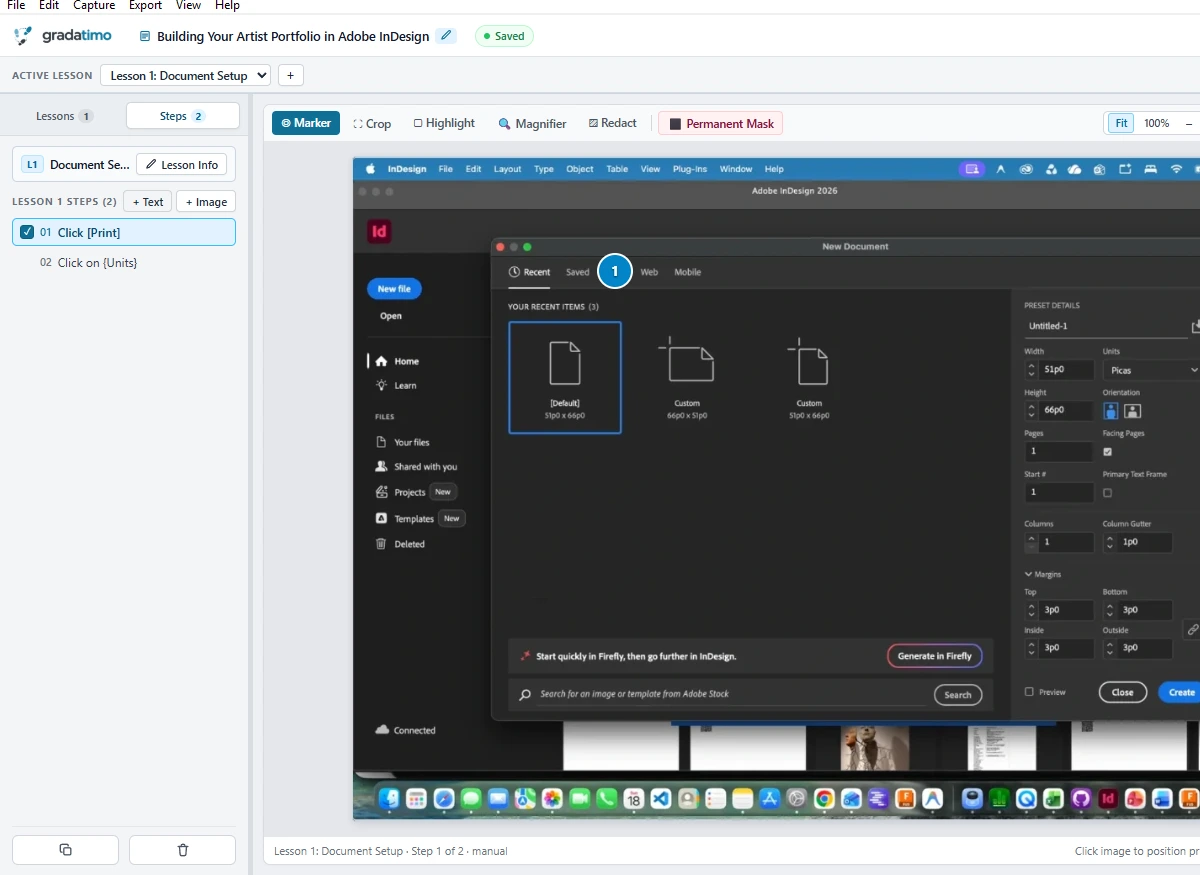
Reordering, combining, and moving steps
As your guide takes shape, you can reorder steps within a lesson, duplicate a step, combine related recorded actions into a single numbered step, delete redundant captures, or move a step into another lesson without rebuilding your project.
Text-only steps
Not every step requires a screenshot. Click + Text in the left sidebar to insert a text-only step for lesson introductions, prerequisites, materials lists, checklists, or safety notes. Text-only steps render cleanly at full width without empty image placeholders.
Attachments and supporting files
Instructional guides often require starter files, templates, or reference links. In the right-hand Step Attachments section, you can attach resources directly to a step:
- Web links (
http://orhttps://): Included as clickable links in both PDF and HTML/website exports. - Local files: Stored inside your
.gradatimoproject and bundled as downloadable files in HTML and multi-lesson website exports. - Dedicated Attachments sidebar tab: Once an attachment is added anywhere in your project, a conditional Attachments tab appears in the left sidebar (
Lessons | Steps | Attachments). This gives you a centralized overview of every project resource, allowing you to jump directly to the parent step, edit metadata, or manage files in one place.
Project storage optimization (File → Optimize Project…)
As tutorials grow with repeated recording takes, image edits, and narration clips, unused media can accumulate inside your single-file container. Gradatimo includes a transactional storage optimizer accessible from File → Optimize Project…:
- Purging unused media: Safely purges unreferenced screenshots, deleted narration takes, and orphaned attachments from the project database.
- Deduplicating identical screenshots: Consolidates identical captures across steps into single-source image records via SHA-256 content hashing.
- Lossless WebP conversion: Converts active screenshot captures to lossless WebP whenever smaller, preserving 100% pixel fidelity while shrinking file size.
- Compressed AAC audio transcoding: Transcodes legacy uncompressed audio recordings to compact mono 44.1 kHz AAC (
.m4a) narration, reducing audio footprint by over 90%. - SQLite VACUUM & integrity check: Reclaims freed database pages and executes an integrity check to produce a compact, defragmented
.gradatimoproject file.