

Click markers and numbered actions
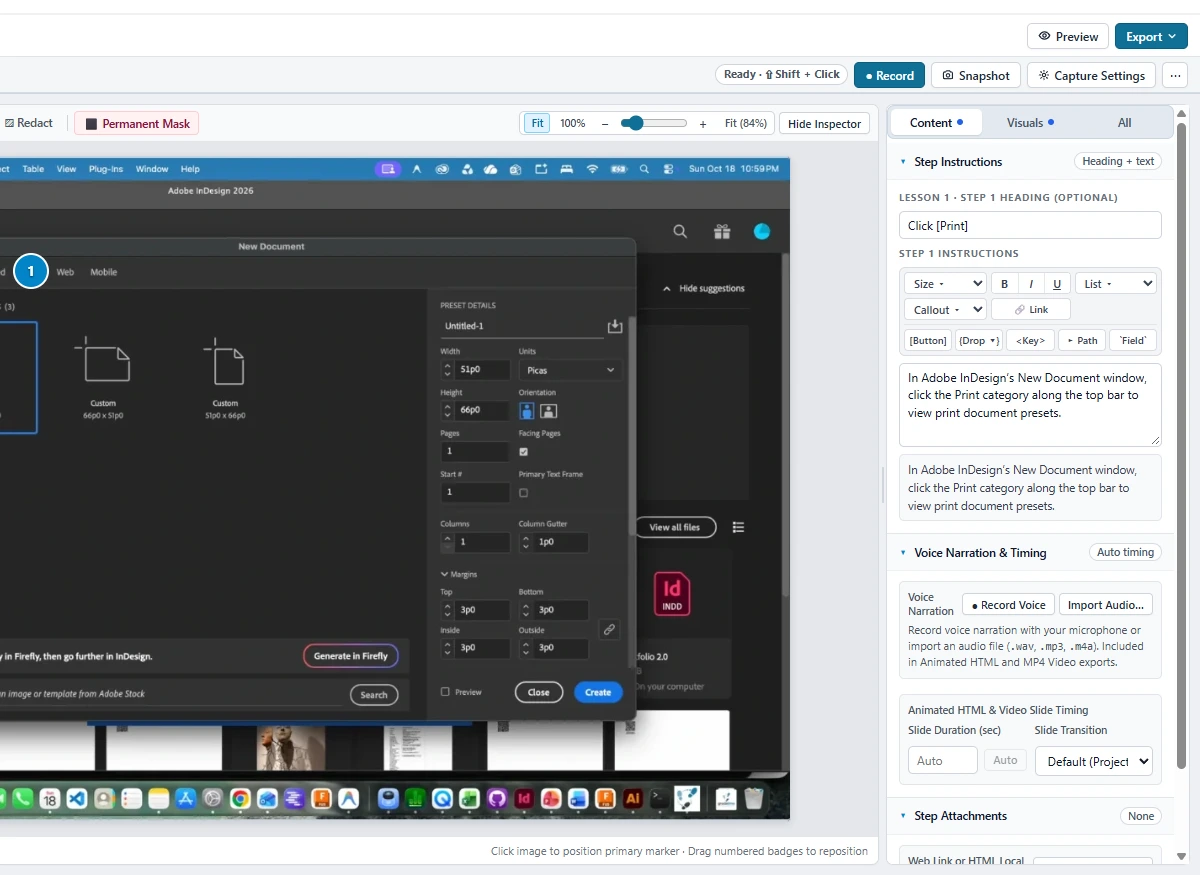
With the Marker tool selected in the canvas toolbar, click anywhere on a screenshot to place the primary click marker, or drag numbered markers to refine their position. When several actions belong together on the same interface screen, you can combine steps into a single compound step with ordered markers (1, 2, 3) and customize marker style, size, and color in the right-hand inspector.

Semantic UI formatting
In the Step Instructions panel on the right, you can distinguish ordinary sentences from interface controls using the formatting toolbar or simple inline syntax:
[Button]— formats an interface button badge (Print, Create){Option}— formats a dropdown menu or selector badge (Units ▾)<Key>— formats a keyboard shortcut or keycap (Shift + Click, ⌘S)▸— inserts a menu navigation separator (for example,File ▸ Export→ File ▸ Export)`Field`— formats an input field name or typed value (8.5 in)> [!NOTE],> [!WARNING],> [!PREREQUISITE]— creates structured callout boxes- [ ]and- [x]— creates interactive checklist items alongside standard bulleted and numbered lists
A live preview box directly below the text area shows how your formatted instructions and badges will appear to readers.
Magnification, cropping, and highlighting
Use Crop (either across a lesson or on an individual step) to remove unneeded desktop clutter, Highlight to draw attention to an important panel or toolbar, and Magnifier to create an enlarged detail inset (1.5× to 4× zoom) so small controls and labels stay legible.
Interactive annotation selection, 8-point resize & targeted deletion
Gradatimo makes canvas annotations flexible and non-destructive:
- Click to select & drag to reposition: Click directly on any existing highlight box or redaction mask on the screenshot canvas to select it. Drag the annotation interior to reposition it smoothly across normalized coordinates clamped safely within image bounds.
- 8-point resize handles: When selected, annotations display eight resize handles—four corners (
nw,ne,se,sw) and four edges (n,e,s,w)—with intuitive directional cursor feedback, making it effortless to frame panels, buttons, and text fields precisely. - Keyboard arrow nudging: Fine-tune selected annotation placement by pressing the arrow keys (↑, ↓, ←, →) for pixel-level nudges, or hold <Shift> for faster 10-pixel adjustments.
- Targeted out-of-order deletion: Remove the currently selected annotation without affecting other annotations by pressing <Delete> or <Backspace>, clicking the inline
×button on the active handle bar, or clicking the toolbar delete button. You never have to undo or delete newer annotations in LIFO order just to remove an earlier highlight or mask. All moves, resizes, and deletions push reversible snapshots to the step undo/redo history (<Ctrl+Z> / <⌘Z>).
Visual redaction vs. Permanent Mask
Gradatimo includes two tools for concealing sensitive information in screenshots:
- Redact: Places an adjustable visual overlay over a region while keeping the underlying image intact for later editing.
- Permanent Mask: Irreversibly replaces the selected pixels in the project’s source image and regenerates derived project images (such as thumbnails, crops, and magnified insets) from the sanitized source so the concealed content does not reappear in newly generated exports.
.gradatimo project, but it cannot modify PDFs, HTML files, or backups you have already exported or distributed outside the project.