

Overview: Your first Gradatimo tutorial
Start with a procedure you already know well—a software setup, a design dialog, or a repeatable team workflow. Gradatimo brings capturing, annotating, writing, and publishing into a single three-pane desktop workspace.
- Create a new tutorial project, open an existing
.gradatimocontainer, or reopen a previous guide from the Recent Projects gallery on the welcome screen (complete with cached preview thumbnails, step counts, and last-modified dates). - Select or create a lesson in the left-hand Lessons / Steps sidebar.
- Start a recording session to capture actions with
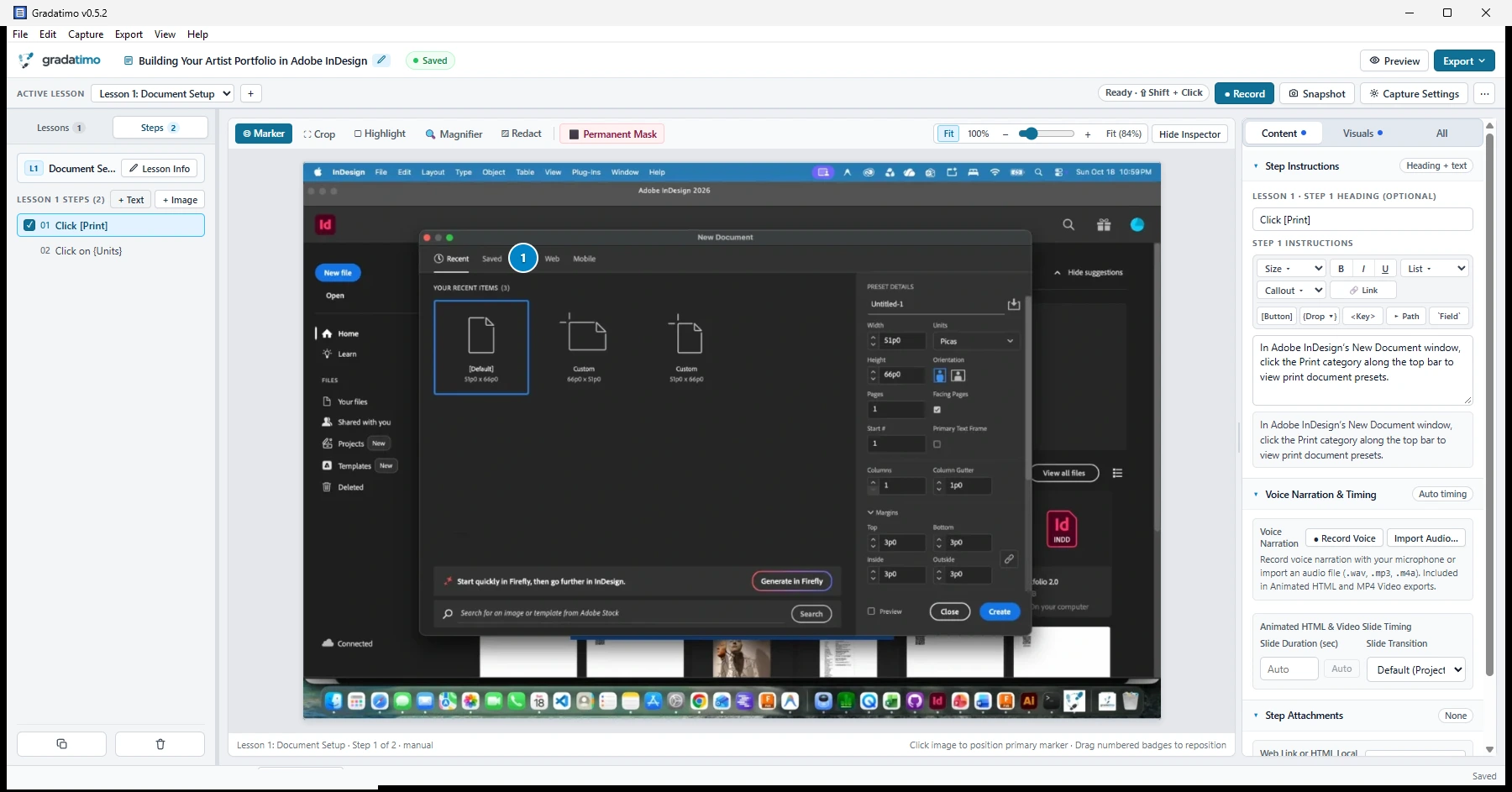
Shift + Click, take a manual Snapshot, or click+ Imageto import an existing photograph or screenshot. - Select a step on the left and write your explanation in the right-hand Step Instructions panel, using tokens like
[Button]or{Option}to highlight interface controls. - Adjust the numbered click marker on the center canvas, crop to the relevant area, or apply a Permanent Mask over any sensitive information.
- Open Preview to inspect your guide, then use Export to generate any of Gradatimo’s five publication formats: structured PDF guides, standalone HTML documents, searchable multi-lesson websites, animated HTML presentations, or instructional MP4 video tutorials.
Tutorials, lessons, and steps
Gradatimo organizes every project as Tutorial → Lesson → Step:
- Tutorial: The complete guide, including its title, author metadata, optional introduction, and lessons.
- Lesson: A focused section within a tutorial. A short walkthrough may need only one lesson, while a larger training manual can divide material across several lessons.
- Step: An individual instruction containing a captured or imported image (with markers, crops, and magnifiers) and written directions—or a text-only step for introductions, checklists, and prerequisites.
Project saving and recovery
Your editable source project is stored locally as a single portable .gradatimo file. Gradatimo includes automatic saving and crash-recovery snapshots while you work, and keeps your editable .gradatimo project separate from exported PDF, HTML, website, presentation, or MP4 video deliverables.
.gradatimo source file in your regular backup folder so you can update individual steps and republish whenever an application interface changes.Troubleshooting basics
If an automatic pre-click capture does not record outside the Gradatimo window, verify that your operating system has granted screen-recording and accessibility permissions (covered in Capture → Screen-recording permissions). If you encounter a reproducible issue, use the Feedback & Support composer to format a diagnostic report.