

Automatic pre-click recording (Shift + Click)
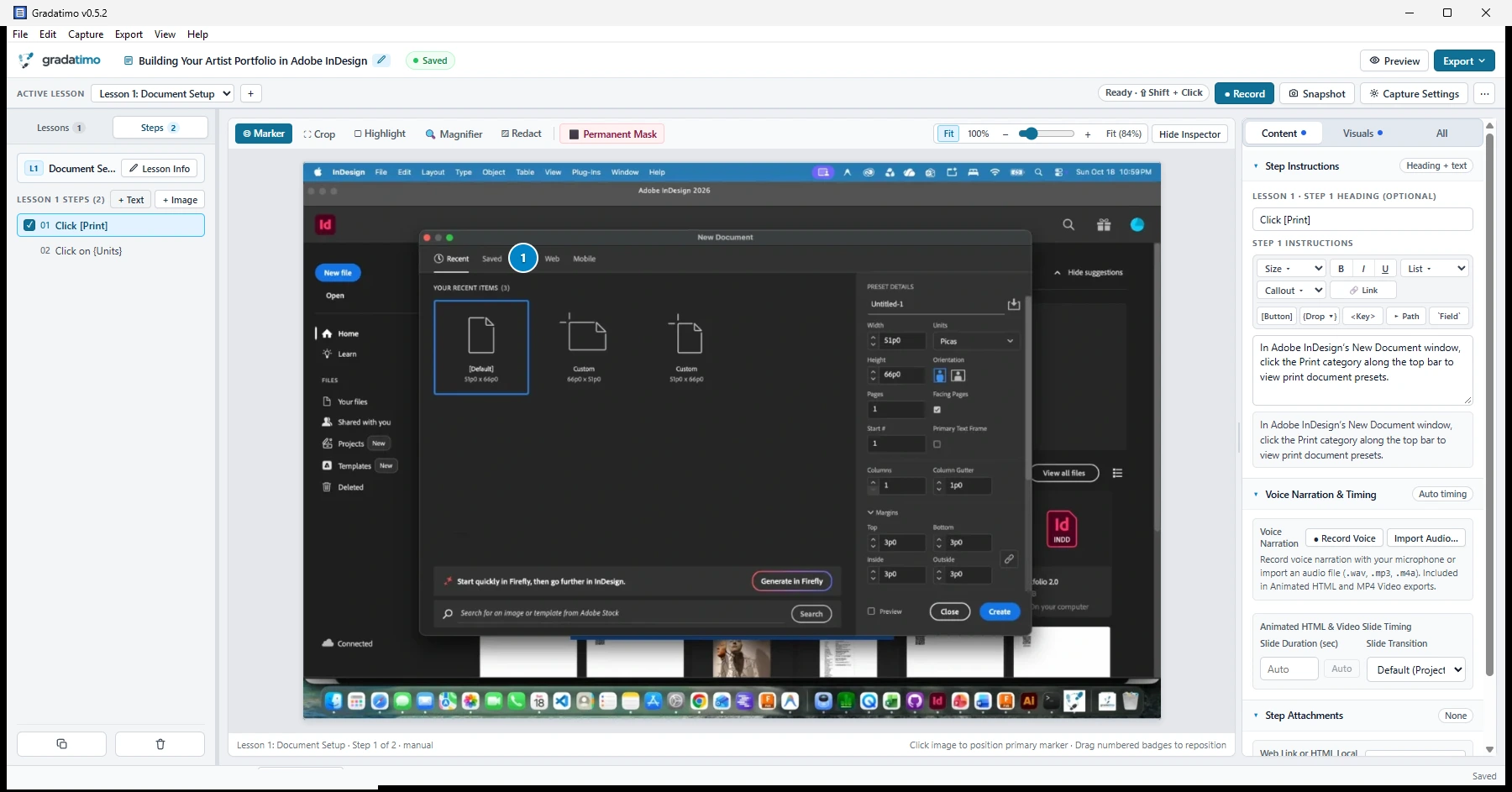
In ordinary screen-capture workflows, clicking a menu item or dialog button immediately changes what is visible on screen—leaving you with a screenshot of the result rather than the control the reader needed to select. Gradatimo’s automatic pre-click recording captures the screen state immediately before your click takes effect and records the click coordinates for your step marker.
- Open the application you are documenting and navigate to the starting point of the procedure.
- Verify the active capture trigger (
Shift + Clickby default) in the recording toolbar and start Record. - Perform each action in the target application using your capture trigger.
- Stop recording and review the generated steps and click-marker placements in Gradatimo.
Local OS accessibility element auto-titling
Gradatimo eliminates manual step title entry by inspecting the local operating system UI accessibility tree at the exact click coordinate:
- Native accessibility APIs: On Windows, Gradatimo uses Win32
IUIAutomation::ElementFromPointon a background thread. On macOS, it inspects elements viaAXUIElementCopyElementAtPosition. Both queries execute locally within milliseconds during capture. - Semantic title formatting: When you click a supported control, Gradatimo formats the step title using semantic tokens automatically: clicking a button titled Save produces
Click [Save]; selecting a menu item producesSelect {File}; interacting with checkboxes createsCheck [Agree]; and focusing text fields producesFocus [Search]. - Strict privacy & password suppression: If the clicked element is identified as a password input, secure field, credit card number, PIN, or contains masked characters (
••••••••), Gradatimo immediately suppresses the accessible label and falls back to a neutralStep Ntitle. Sensitive field values are never captured, inspected, or saved. - 100% offline with zero AI or OCR: Accessibility auto-titling runs entirely through local operating system APIs. It uses zero AI text generation, zero cloud network requests, zero OCR, and zero keystroke logging.
Active-cursor multi-monitor capture on macOS
For multi-display desktop workstations, Gradatimo’s macOS capture engine uses CGGetDisplaysWithPoint in tandem with per-display ScreenCaptureKit stream buffers. The engine automatically detects which display the active cursor is currently interacting with and captures that display at full native resolution—without requiring you to designate a primary monitor or switch displays manually.
Manual screenshots
Not every step involves a mouse click. Use the Snapshot control whenever you want to capture a static window, an application overview, or a missing step inside an existing lesson without running a continuous recording session.
Importing existing images and photographs
Instructional materials are not limited to computer screens. Click + Image in the left-hand steps panel to import camera photographs, diagrams, or previously saved screenshots. You can mix imported photographs and screen captures freely within the same lesson.
Platform-specific capture permissions
macOS and Windows handle screen capture and global input monitoring through different operating-system mechanisms:
- macOS: Requires permission under System Settings → Privacy & Security → Screen & System Audio Recording so Gradatimo can capture windows outside its own interface, and Accessibility permission when using global pre-click coordinate detection.
- Windows: Does not use macOS-style System Settings privacy toggles for standard desktop window capture, though Windows SmartScreen or administrator elevation prompts may appear during installation or when capturing elevated windows.